Increasing disk size and partitions in a Linux environment
After increasing the physical disk size run these commands in the Linux system: https://console.cloud.google.com/compute/disks?_ga=2.127622029.1613044484.1724921625-3128660072.1708352595
- Type (file system) =
ext4,xfsetc. - Volume =
sda,sdbetc.- Example used is
sdXYZ
- Example used is
- Partition =
sda1,sda2,sdb1etc.- Example used is
sdXYZ123
- Example used is
https://cloud.google.com/compute/docs/disks/resize-persistent-disk
1. List the Type, Size and device names of the system's disks.
1. sudo df -Th
1. Make note of the Type here for the disk we are increasing.
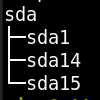
2. sudo lsblk
1. Make note of the Name (volume) name sdXYZ and it's partitions sdXYZ1,2,3 etc.
 2. Verify the partition type:
1.
2. Verify the partition type:
1. sudo parted -l /dev/sdXYZ
1. You may get the following prompt:
1. "Warning: Not all of the space available to /dev/sdXYZ appears to be used, you can fix the GPT to use all of the space (an extra 209715200 blocks) or continue with the current setting? ". This likely won't help you, so you can safely type Ignore and continue with the rest of the guide.
3. Start the root partition resize process:
1. sudo parted /dev/sdXYZ
1. (parted) prompt:
1. Type resizepart and press enter.
2. Partition number? prompt:
1. Type ONLY the PARTITION NUMBER (for example 1 ) of the partition we are increasing (found in the command lsblk) and press enter.
3. Warning: Partition /dev/sdXYZ123 is being used. Are you sure you want to continue? prompt:
1. Type yes and press enter.
4. End? prompt:
1. Type 100% and press enter.
5. You should now be returnted to the (parted) prompt.
1. Type quit and press enter.
4. Read the new partition table using this command.
1. sudo partprobe /dev/sdXYZ
1. Nothing will happen on the terminal when running this command, its okay.
5. Next, extend the file system on the disk with one of these two commands:
1. If you are using ext4, use the resize2fs command:
1. sudo resize2fs /dev/sdXYZ123
2. If you are using xfs, use the xfs_growfs command:
1. sudo xfs_growfs -d MOUNTPOINT
6. Now, resize the file system on the disk with one of these two commands:
1. If you are using ext4:
1. sudo resize2fs /dev/sdXYZ
2. If you are using xfs:
1. sudo xfs_growfs MOUNTPOINT
7. If you get "The filesystem is already 26185979 (4k) blocks long. Nothing to do!" You can try the following command:
1. sudo growpart /dev/sdXYZ 123 (note the space in the command!!)
8. Verify that the increased disk size has been correctly applied:
1. df -h /dev/sdXYZ