VPN: 2. Access: Applications, API's
For creating proxy or tunnel for local app:3000 First we need to have service teleport. This service can be on the same host or in the same local network where we are running the app.
For localhost app. If we didn't have installed a teleport client, we need to install ➝VPN: 2. Access: Machine: Ubuntu (https://app.clickup.com/2496230/docs/2c5q6-69975/2c5q6-223035)
after installing we need to edit the teleport file. sudo /etc/teleport.yml
This label is for creating rules and give access to this app/label. labels: env: dash
app_service:
  enabled: "yes"
  debug_app: false
  apps:
  - name: dash
    uri: http://10.0.1.1:3000
    labels:
      env: dash
    public_addr: ""
    insecure_skip_verify: false
    rewrite:
      headers:
        - "Host: dash.tp.aholadigital.com"
        - "Origin: https://dash.tp.aholadigital.com"
  - name: app2
    uri: http://10.0.1.1:3000
    labels:
      env: team1
    public_addr: ""
    insecure_skip_verify: false
    rewrite:
      headers:
        - "Host: app2.tp.aholadigital.com"
        - "Origin: https://app2.tp.aholadigital.com"
  - name: name_of_the_new_app
    uri: http://10.0.1.1:3000
    labels:
      env: team1/2/3
    public_addr: ""
    insecure_skip_verify: false
    rewrite:
      headers:
        - "Host: name_of_the_new_app.tp.aholadigital.com"
        - "Origin: https://name_of_the_new_app.tp.aholadigital.com"
Section rewrite: this section is added because if we need to login to that app or any input, we need to pass data to the site.
after editing the /teleport file. we need to add token for validation.
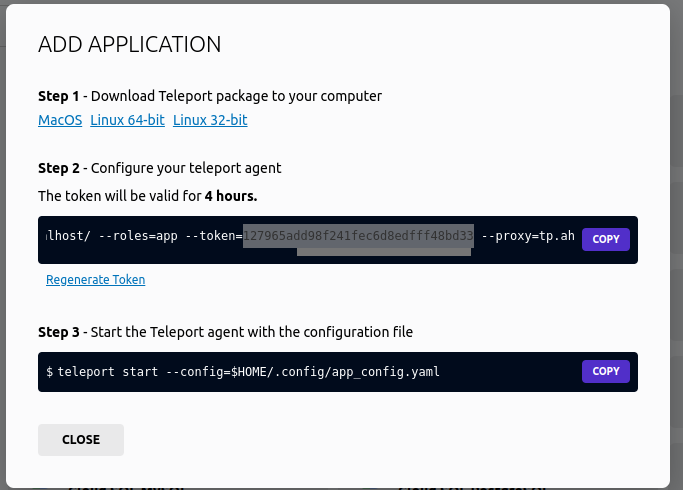
Using teleport UI, we go to Enroll new resource and click Application.
we can use the shown steps or we just copy the token, and again go to host /etc/teleport.jaml and replace the token. After that we restart the teleport service
sudo systemctl restart teleport try first with reload, if the app is not show then restart the service.
and we can check for errors sudo sysemctl status teleport