Gmail footer append
Gmail footer is used for all outgoing emails to put messages to them. Usually only having the basic: "Any email and files/attachments transmitted with it are confidential and are intended solely for the use of the individual or entity to whom they are addressed. If this message has been sent to you in error, you must not copy, distribute or disclose of the information it contains. Please notify us immediately and delete the message from your system." text on it, but can also have seasonal greetings.
Creating Email Footers in Google Workspace
- Sign in to Google Admin Console:
- Go to admin.google.com and log in with your admin account.
- Navigate to Gmail settings:
- From the Admin Console home page, click on "Apps."
- Select "Google Workspace" and then "Gmail."
- Scroll down to "Advanced settings" and click on "Compliance" to expand the section.
-
Edit existing footers:
- Find the "Append footer" option
- Click "Edit" to edit existing footers, remember to enable and disable footers to only have one you want to be enabled.
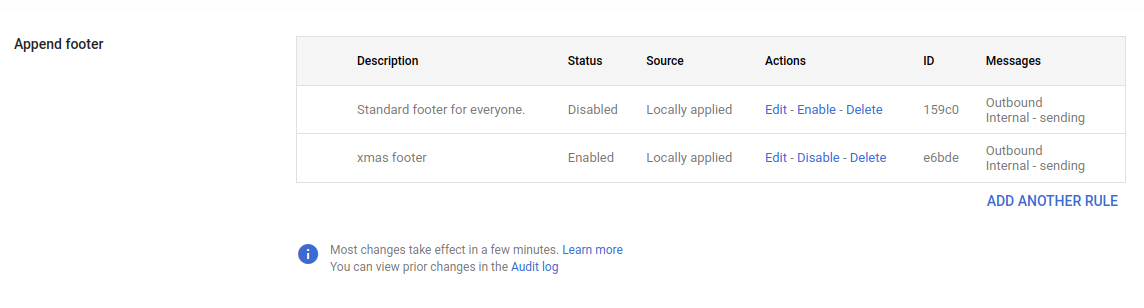
-
Add new footer rule:
- Find the "Append footer" option
- Click "ADD ANOTHER RULE" to start setting up your email footer.
- Enter footer text:
- In the "Add setting" box, enter the text you want to include in the footer.
- Use plain text or HTML for formatting.
- Apply the footer:
- Choose which organizational units should have the footer applied.
- Click "Save" to apply the changes.
- Review and test:
- Send a test email to ensure the footer appears correctly.
- Adjust the settings if necessary.