VPN: 2. Access: Databases: Postgres
- From menu Enroll New Resource we chose "Self-Hosted PostgreSQL"
- Register a Database
- we create database name.
- after that we need to point ip address and port number.
- because is the localhost db we type localhost and the port from the host (5432)
- also good think is to write labels.
- Next is to setup Database service machine
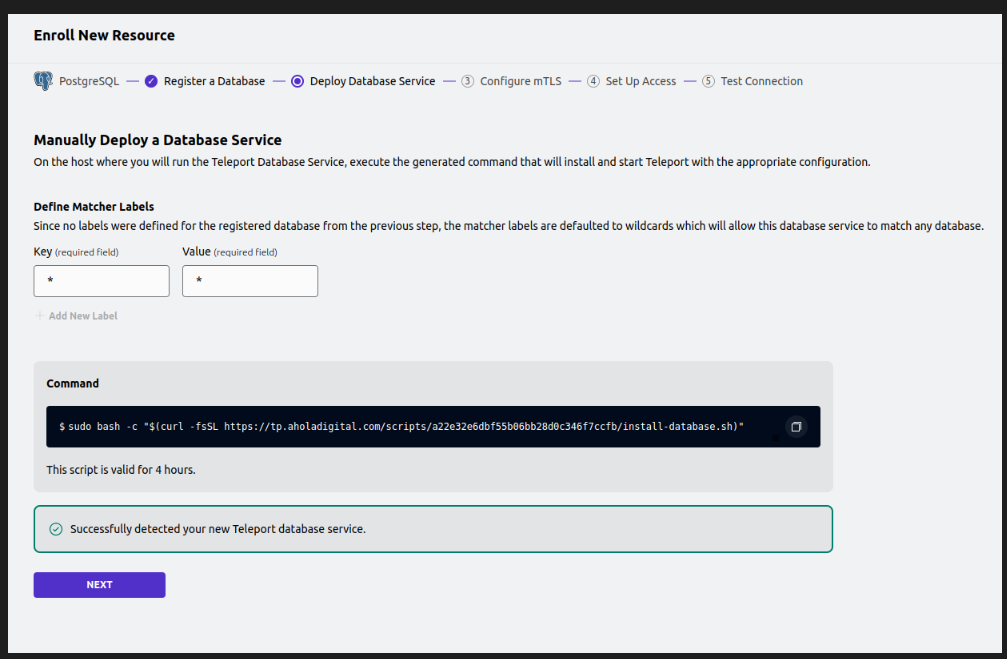
- this Machine can be use for multiple databases in the same ip range or host.
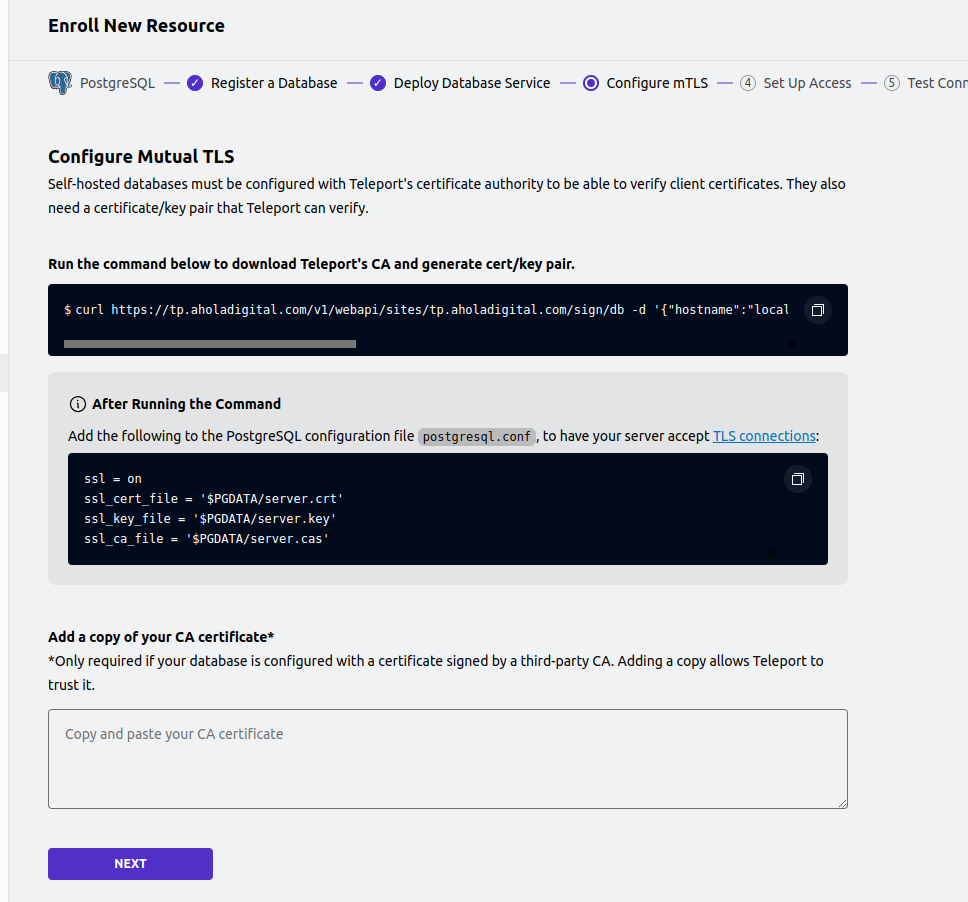
- in the next photo, we see commands to generate server cert, for communication with the database service machine, and that machine is connected with Teleport cluster.
Before we continue we go to the host where we like to setup postgre db. In this demo I will show with docker postgres.
sudo docker run --name postgresql2 -e POSTGRES_PASSWORD=yourpassword -p 5433:5432 -d postgres:15.2
sudo docker exec -it postgresql3 /bin/bash
or for root access
sudo docker exec -u root -t -i postgresql3 /bin/bash
with this command we are in docker.
now we can run the command for creating teleport certificates.
the prefer location is to run in postgres dir.
depends of the docker postgres version path will be dif
/var/lib/postgresql/data
in that file location we find postgresql.conf
and add:
change $PGDATA for the correct path. because we will get error.
FATAL: could not load server certificate file "$PGDATA/server.crt": No such file or directory
ssl = on
ssl_cert_file = '$PGDATA/server.crt'
ssl_key_file = '$PGDATA/server.key'
ssl_ca_file = '$PGDATA/server.cas'
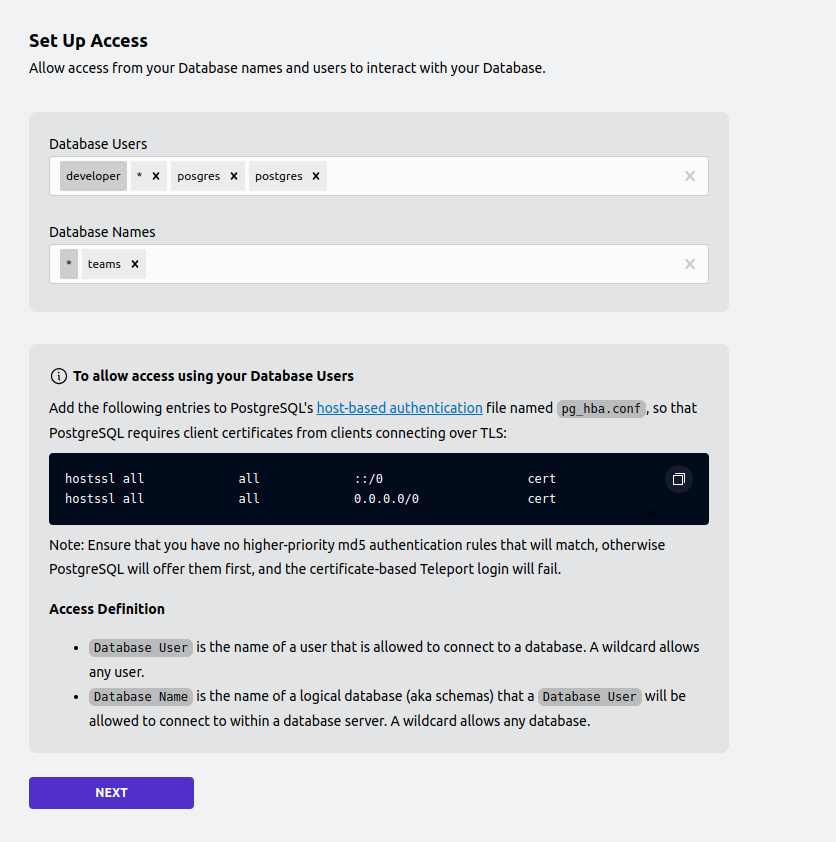
Final step is to add database name and users.
and to allow TLS connection.
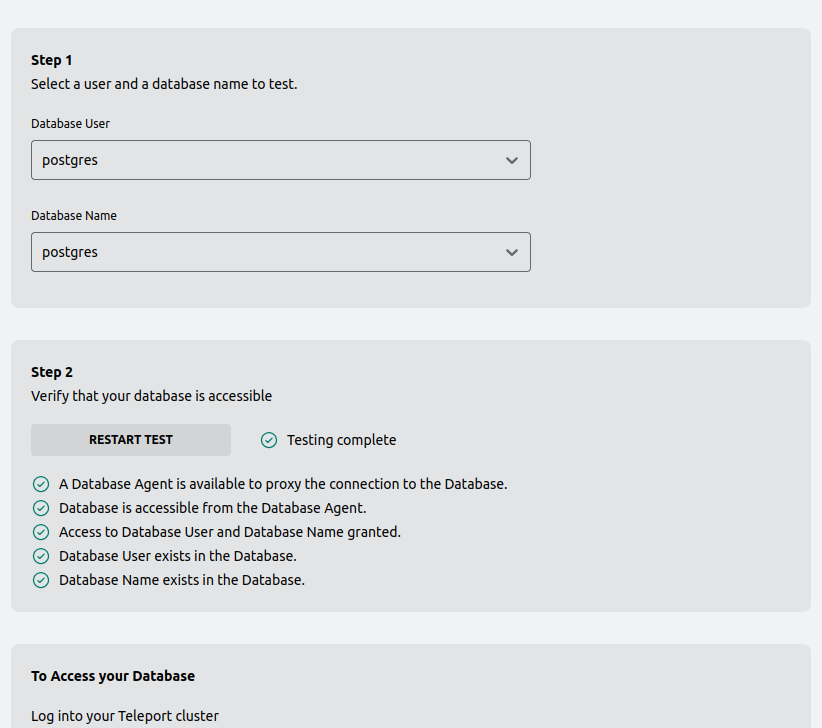
after this setup we can test connection;
VPN: 2. Access: Databases: Postgres: pgAdmin access (https://app.clickup.com/2496230/docs/2c5q6-69975/2c5q6-223395)