Google: How to create a shared inbox
When you require an inbox that needs to have multiple people assigned to it, you can create a shared or group inbox. Google allows a couple of ways to complete this task: 1. Create a group 1. Doesn't cost anything 2. User interface is different compared to Gmail 2. Create a Google user 1. Costs us one license to create and will have monthly costs 2. Not sure if groups can be added to delegate the account's inbox
Google Groups
- Create the group from admin.google.com, under Directory ➝ Groups
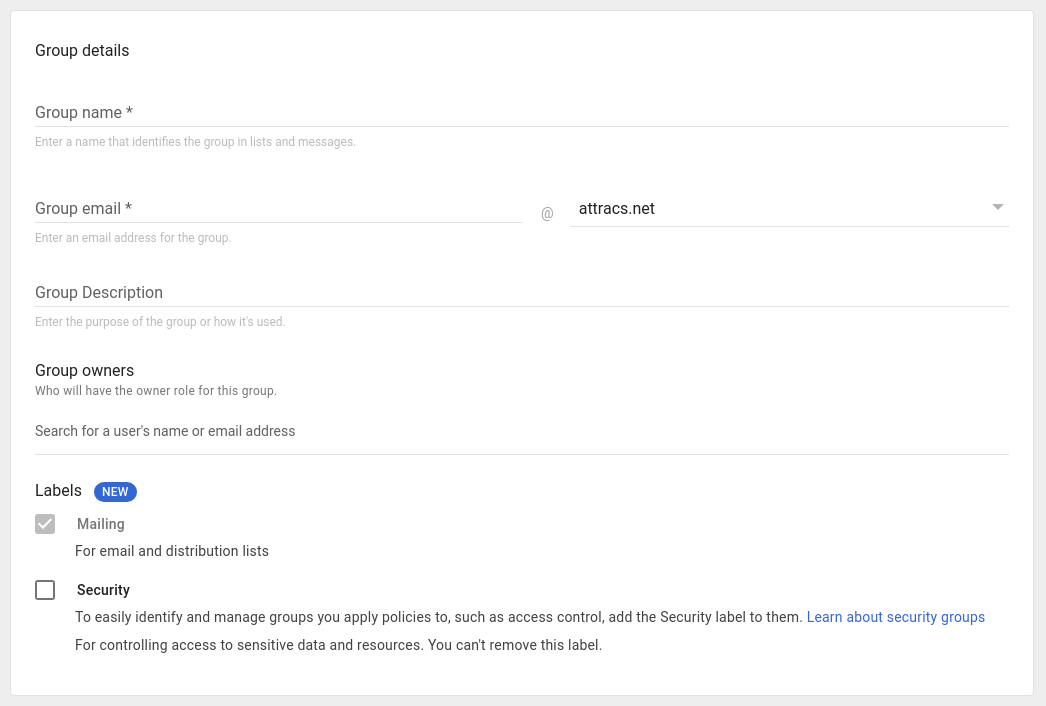
- Enter the details:
- Group name: g_group_name_here
- Group email
- If customer-facing, do not copy group name, use something nicer
- Set the domain as @aholadigital.com
- Group description: Short summary, what this group is for
- Group owners: Most likely Toni?
- Labels
- By default, do not enable the Security checkbox to avoid issues. Be very careful with the Security checkbox, this is an irreversible action, if you think there is any chance at all that someone outside of Ahola Digital may need access to the mailbox do not enable it.
- Click Next
- Apply the permissions you deem necessary
- If you want to receive email from anyone outside of Ahola Digital, you need to set "Who can post" as External.
- Note that there are multiple places where you can enable external posting, use this. Do not try groups.google.com or workspaces!
- Correct location:
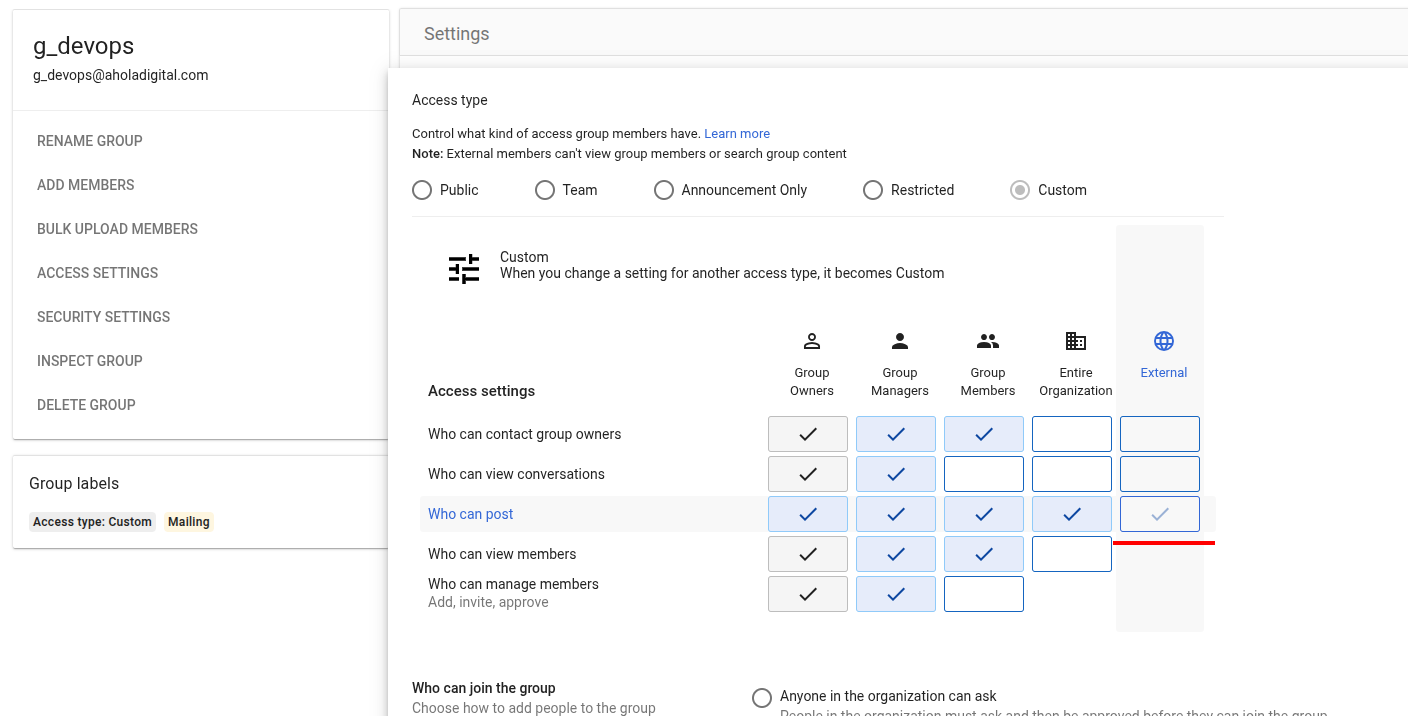
- Correct location:
Sharing the group inbox
https://support.google.com/a/users/answer/10375787?hl=en 1. Sign in to Google Groups. 2. Click the name of a group. 3. On the left, click Group settings. 4. Under Enable additional Google Groups features, select Collaborative Inbox. 1. A pre-requisite to enabling this is that Conversation history is also enabled You should now be able to see emails sent to the group's email address in the group conversations and also in your personal inbox.