N8N automated DevOps documentation backup
This will download the n8n image and start the container.
docker run -it --rm \
--name n8n \
-p 5678:5678 \
-e GENERIC_TIMEZONE="Europe/Helsinki" \
-e TZ="Europe/Helsinki" \
-e N8N_ENFORCE_SETTINGS_FILE_PERMISSIONS=true \
-e N8N_RUNNERS_ENABLED=true \
-v n8n_data:/home/node/.n8n \
n8nio/n8n
Before you start
There are a few configurations that need to be done before being able to start building the workflow.
Credentials

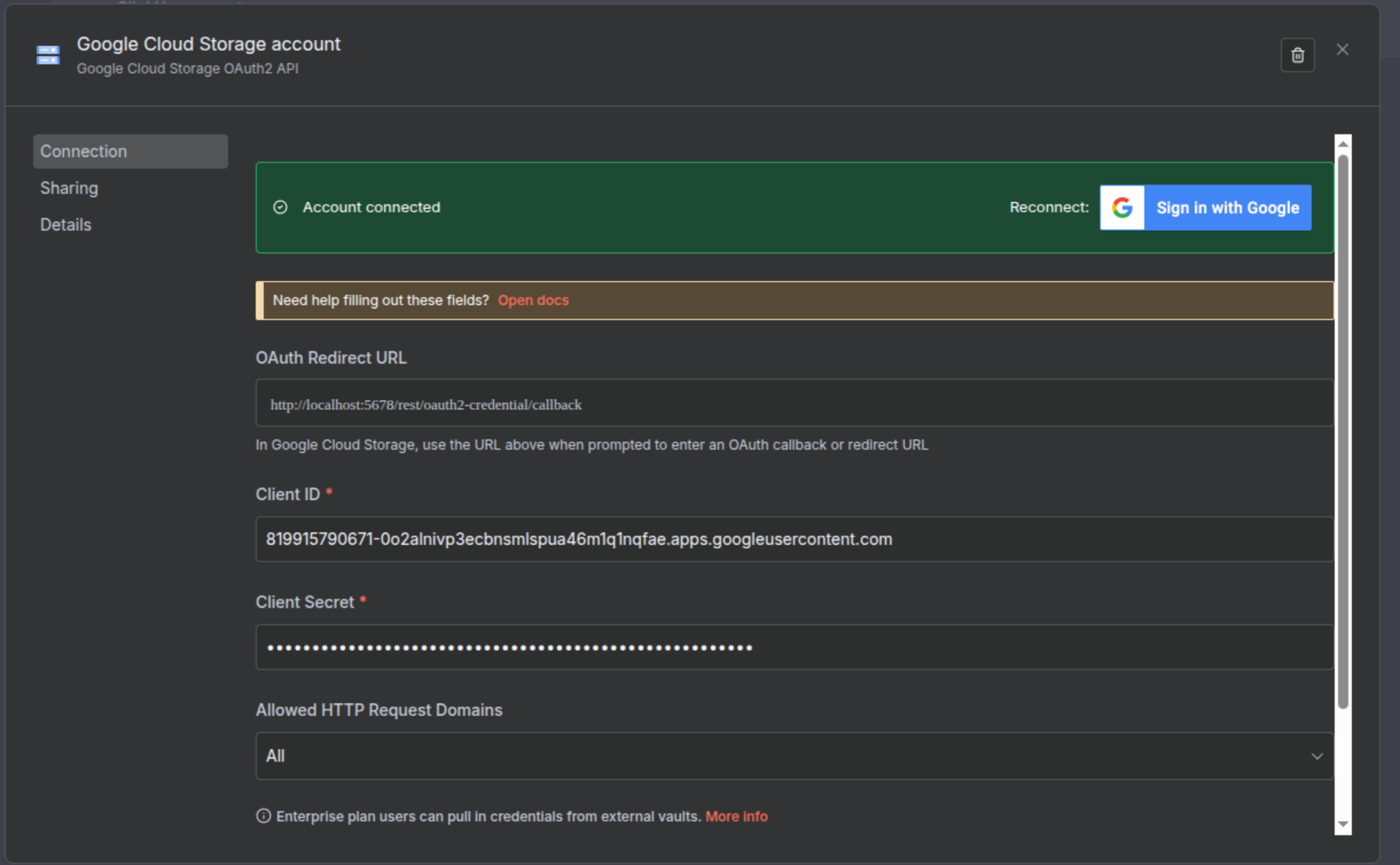
Google Cloud Storage account A new credential must be created in the project where the bucket is located at. This can be found at APIs & Services → Credentials * Type of credential: OAuth client ID * Application Type: Web Application, (give a descriptive name) * Authorized redirect URls: http://localhost:5678/rest/oauth2-credential/callback (This url might change in the future) * Hit Create From the module that pops after pressing the Create button, copy Client ID and the Client Secret
Now go to n8n → Credential → Create credential A new module will pop up. From the combobox select Google Ads OAuth2 API and hit Continue.
Google Ads account module
* OAuth Redirect URL: http://localhost:5678/rest/oauth2-credential/callback (same link as the one pasted in the gcloud credential section previously. The must be the same).
* Client ID: Client ID (previously saved).
* Client Secret: Client Secret (previously saved).
* Hit Save and after Sign in with Google. (Follow instructions).
It should look like the image below:
ClickUP account Once the Google credential has been created in n8n, click Create credential again. * From the combobox select ClickUp API * Open 1Password and look for Devops Machine User Clickup.
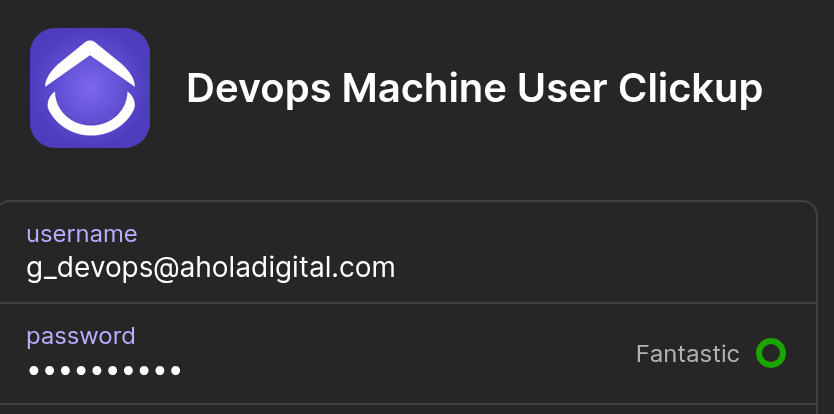
- Copy the API Token and paste it in the Access Token field in the n8n module. It should look like the image below.
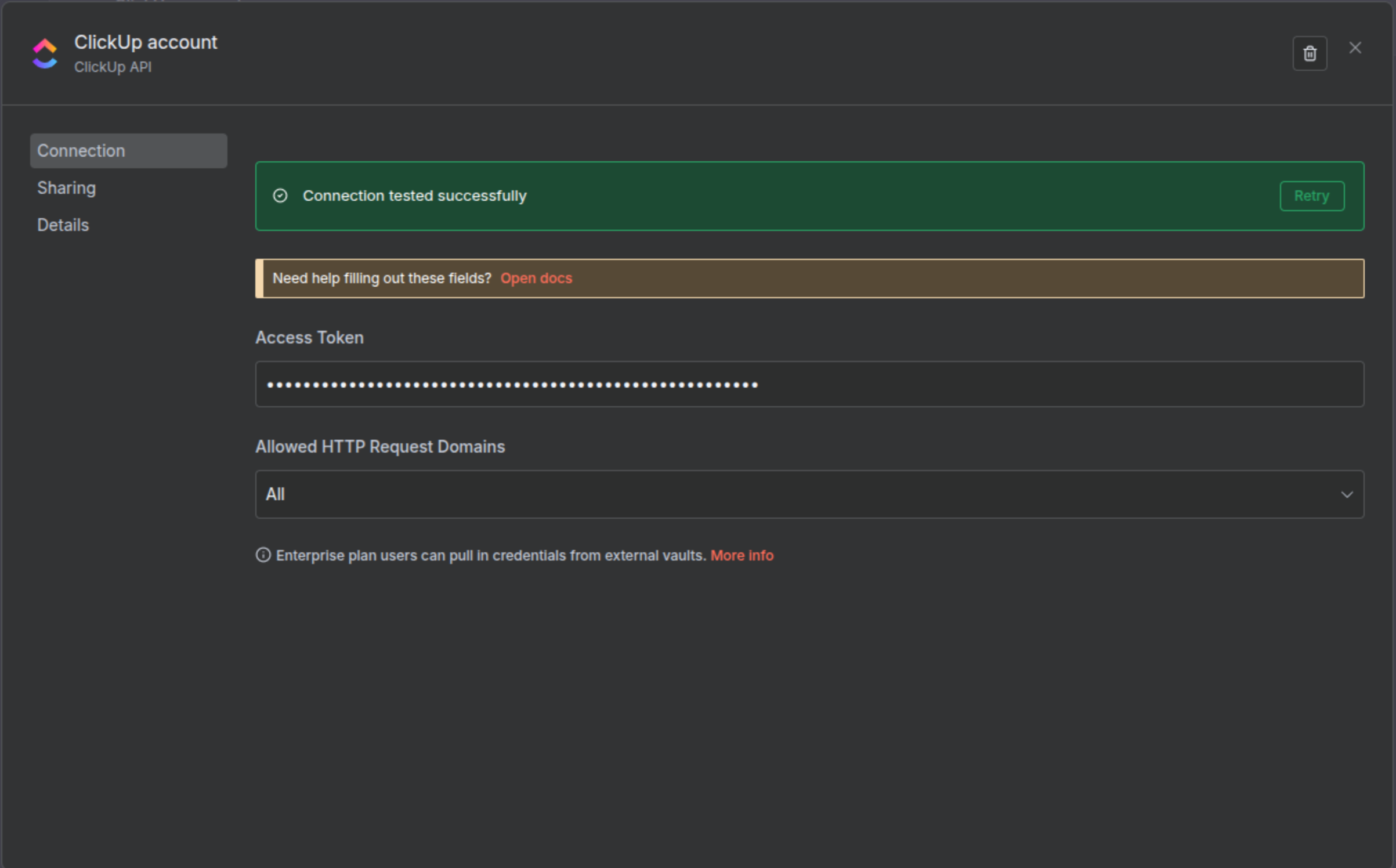
Once the credentials have been setup, you can start working in the workflow
Workflow
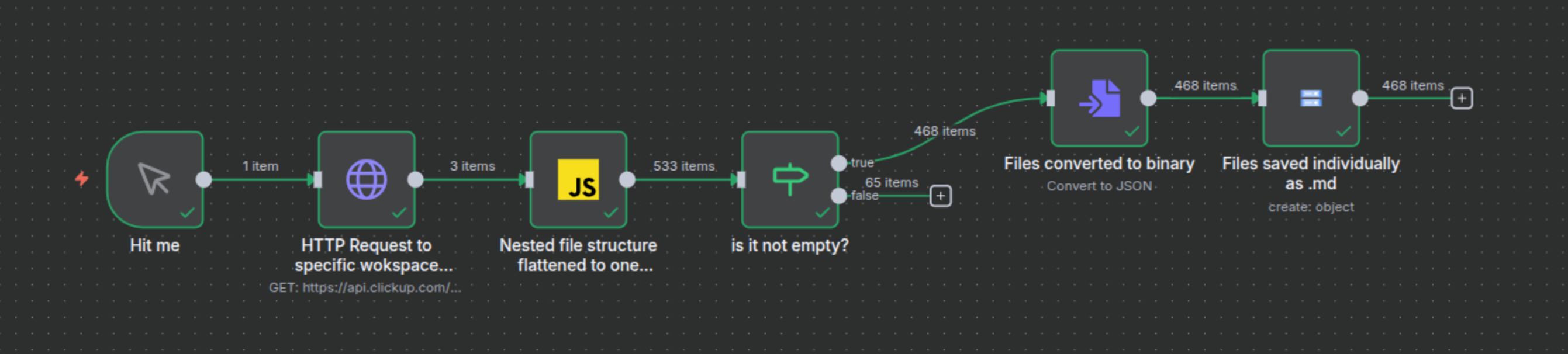
HTTP request node: * Method: GET * URL: https://api.clickup.com/api/v3/workspaces/2496230/docs/2c5q6-69975/pages * Authentication: Predefine Credential Type * Credential Type: ClickUp API * ClickUp API: ClickUp account * Send Query Parameters toggle ON * Specify Query Parameters: Using Fields Below * Name: max_page_depth * Value: -1 * Name: content_format * Value: text/md
This node is pointing to the specific workspace in ClickUp 2496230 and all the docs under the document 2c5q6-69975 and to all the pages within these documents.
JS node:
 /**
 * Recursively flattens a ClickUp page and its sub-pages,
 * building a hierarchical file path.
 *
 * @param {any} page - A ClickUp page object.
 * @param {string} path - The parent path.
 * @returns {any[]} - A flat array of n8n output items.
 */
function flattenPages(page, path) {
  let allPages = [];

  // Sanitize the page name to be a safe file/folder name
  // This replaces / \ ? * : | " < > etc. with a hyphen to prevent errors
  const safeName = (page.name || "untitled").replace(/[\/\\?%*:|"<>]/g, '-');

  // Create the full path for this file (e.g. "Parent/Child")
  const fullPath = path + safeName;

  // 1. Add the current page to our list
  allPages.push({
    json: {
      // The Object Name for GCS, e.g., "SecDevOps/City-Environment.md"
      fileName: fullPath + '.md',

      // The content for the file.
      // We use a space " " if it's empty to prevent GCS upload errors.
      fileContent: page.content || "",

      // Pass the bucket name along just in case you need it dynamically
      bucketName: 'clickup-test-backup'
    }
  });

  // 2. If this page has sub-pages, recursively flatten them
  if (page.pages && page.pages.length > 0) {
    for (const subPage of page.pages) {
      // The new path for children is this page's path + a slash
      allPages = allPages.concat(flattenPages(subPage, fullPath + '/'));
    }
  }

  return allPages;
}

// --- MAIN EXECUTION ---
// Get all items from the HTTP Request node
const allInputItems = $input.all();
let allFlattenedPages = [];

for (const item of allInputItems) {
  // Start the flattening process for each top-level doc.
  // We start with an empty path string "".
  allFlattenedPages = allFlattenedPages.concat(flattenPages(item.json, ""));
}

// Return the final, complete, flat list of 466+ items.
return allFlattenedPages;
The input from the HTTP request comes as a nested structure. Here the js code turns it into a one dimensional list. Therefore, every document is seen as an individual element to avoid skipping documents that are within other document.
Control flow (if) node:
One of the issues that arose was that a considerable number of empty documents with a strange number as name were being saved to the bucket. Therefore this control flow node checks if the page of the document is empty, send it to the FALSE branch.
* Parameters:
* Conditions: {{ $json.fileContent }} is not empty
Files conversion node: All the files are delivered as json, however to be able to save them, it is necessary to convert them into binary format. In this node, every json is converted into individual binary files.
Parameters:
* Operation: Convert to JSON
* Mode: Each item to Separate File
* Put Output File in Field: data
* Options:
* File Name: {{ $json.fileName }}
Google Cloud Storage → Create an object node: Here every single file is saved to the designated bucket.
Parameters:
- Credential to connect with: Google Cloud Storage account
- Resource: Object
- Operation: Create
- Bucket Name: bucket_name
- Object Name:
{{ $binary.data.fileName }} - Projection: All Properties
- Use Input Binary toggle: ON
- Input Binary Field: data
Workflow: