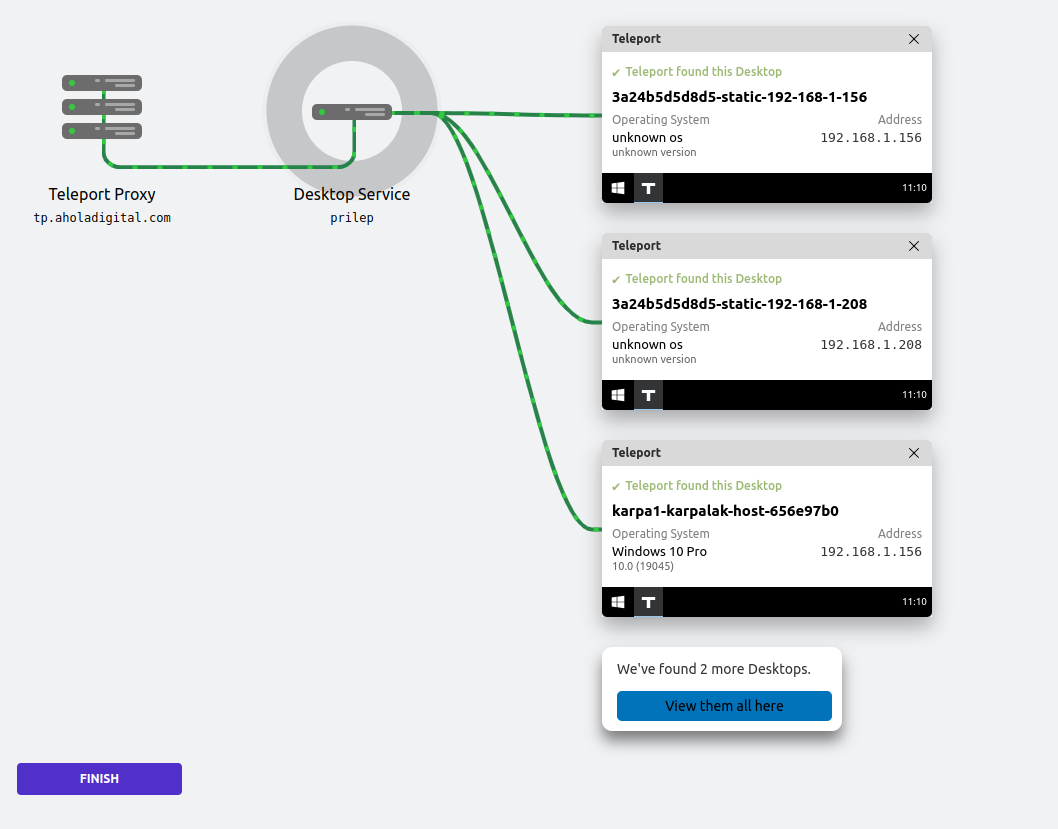
VPN: 2. Access: Machine: Windows: Install
First we need to have linux-host in the same network in the windows env.
- Prepare the windows host (no-AD).
curl -o teleport.cerhttps://tp.aholadigital.com/webapi/auth/export?type=windows- curl -o tp-win-auth.exe https://cdn.teleport.dev/teleport-windows-auth-setup-v14.2.1-amd64.exe
- Download the Teleport Windows Auth setup program.
- Double-click the executable you downloaded to run the Teleport Windows Auth Setup program interactively and select the Teleport certificate that you exported when prompted.
- The setup program:
- Enables Windows to trust the Teleport certificate authority.
- Installs the required dynamic link library (DLL) for Teleport to use.
- Disables Network Level Authentication (NLA) for remote desktop services.
- The setup program:
- Restart the computer.
- If you want to automate the installation process, you can run the setup program from an administrative Command Prompt or PowerShell console with the following command:
teleport-windows-auth-setup.exe install --cert=teleport.cer -r
1. Go to the hetzner2 or on you terminal(here you will need to login)
2. tctl tokens add --type=windowsdesktop
this command will create token for joining.
3. Go to the new linux-host (part of the network of the Windows env)
* * this host will be our Desktop_Service (this is like jump server, controler).
4. Nice think is first on this host to setup teleport linux access.
5. After that we open teleport.jaml
- If we have already setup Ubuntu access, we will have this file /etc/teleport.jaml
- Add windows_desktop_service with the IP address of that host. (in this time max allowed on teleport is 5-6 windows no-ad hosts)
- and change the auth_token: created on your or hetzner2.
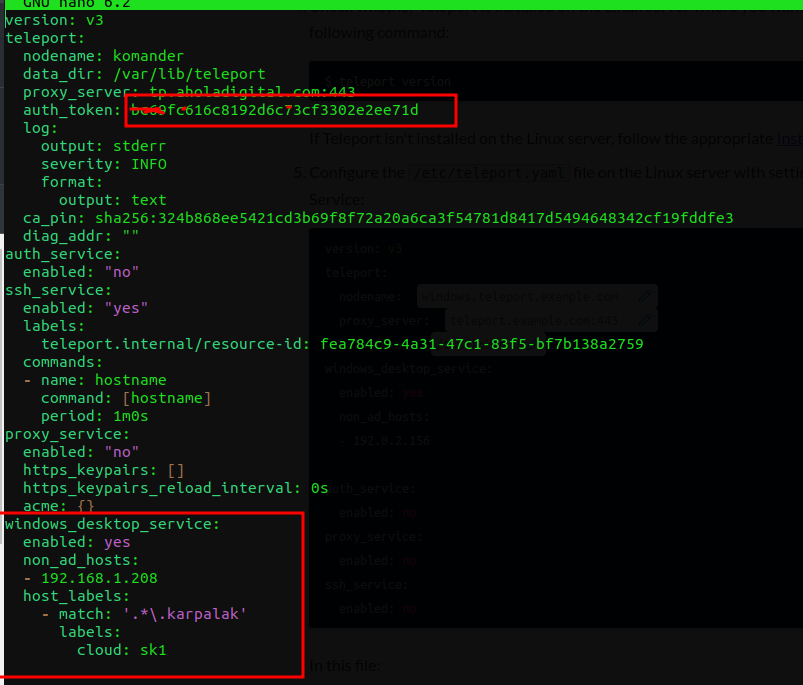 after save the file and restart teleport.
sudo systemctl restart teleport
check logs after restarting teleport.
journalctl -fu teleport
 also using no ad-host we can use not-existing account for login. if we enable in the rule we create.
If we doesn't create first steps only map ip address with the hostname, we will have this auth error.
or try first cmd gpupdate /force

https://goteleport.com/docs/desktop-access/active-directory-manual/ this is doc how you will set up manually.
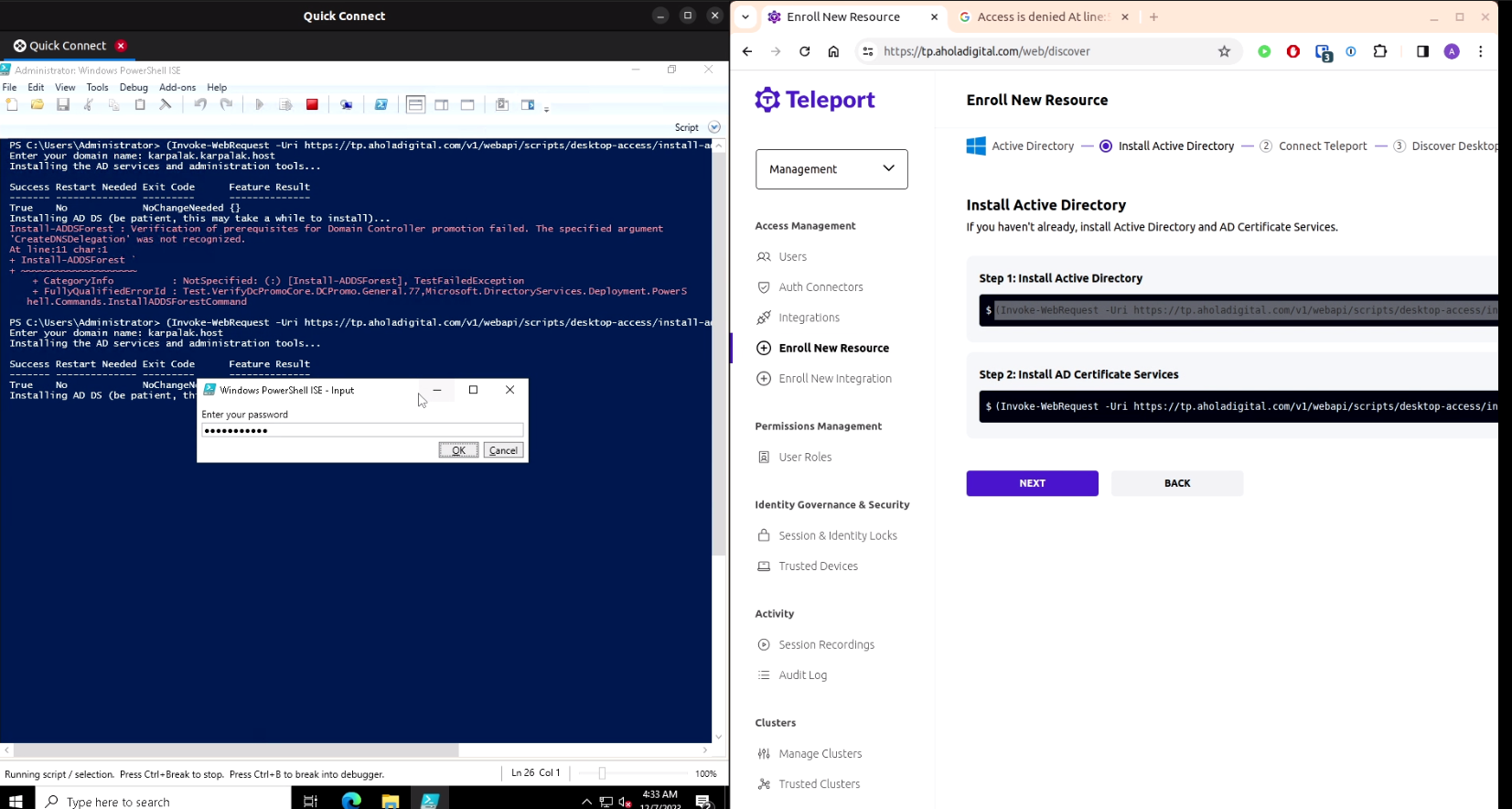
On the next image we can see guided adding windows AD infrastructure. This way is little scary because we will start script. that script will make some automatisation like: Creating teleport-srv user with certificate access. this user will be used for authenticating with the host's Also using this will be allowed for new host to be recognised. Steps for adding this setup we have wizard help during installation.
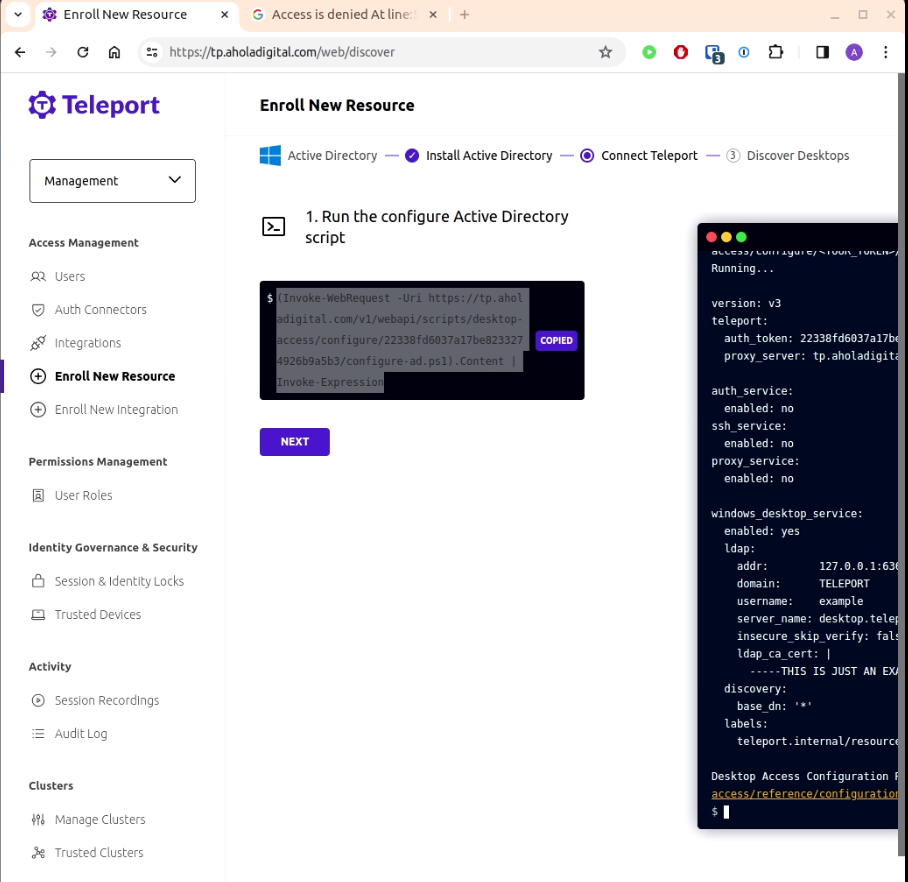
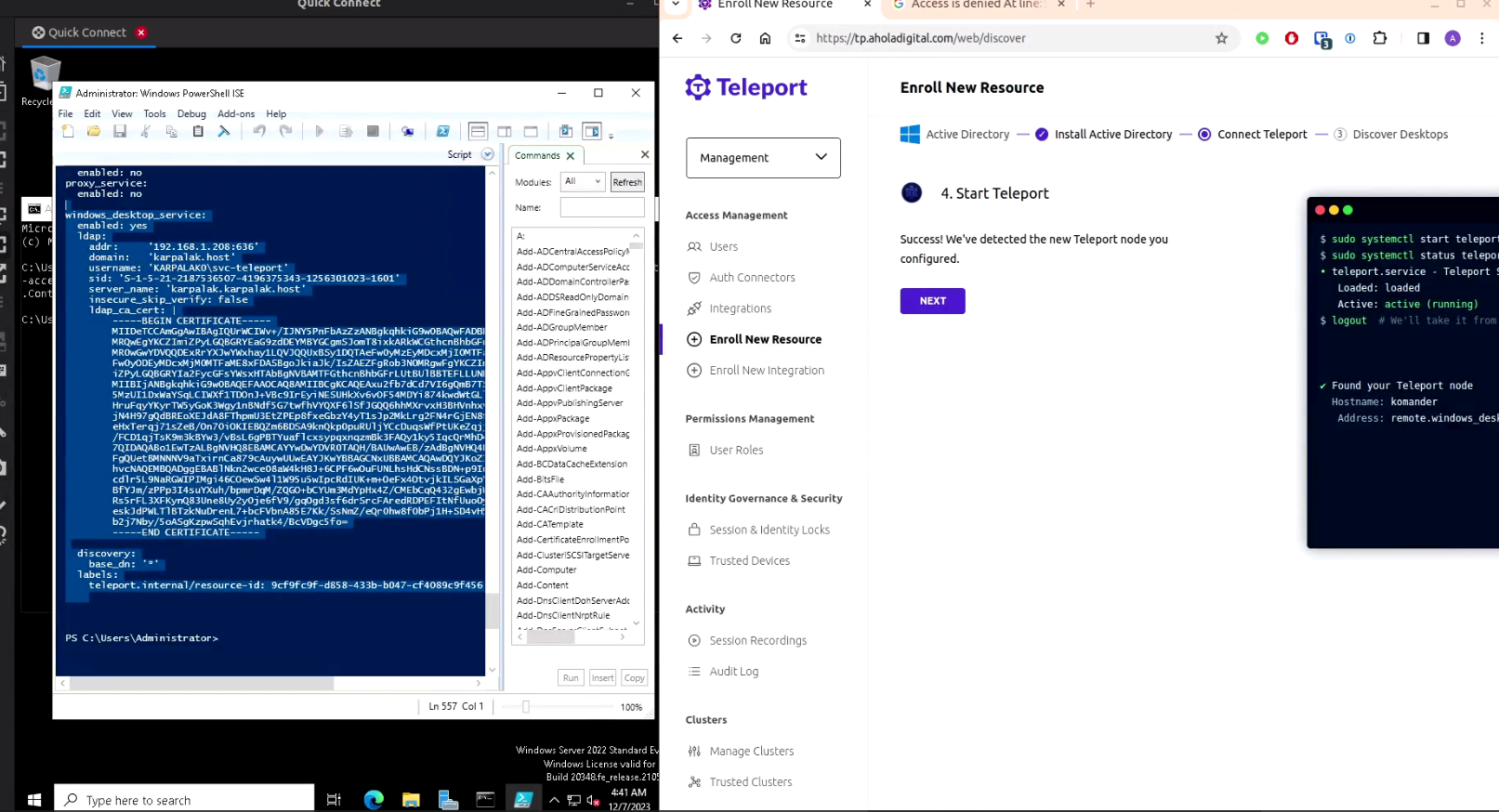 printed rule we copy and paste to our win-service host.