Vault (Hashicorp): Whitelisting new instances
Whitelisting instances in Hashicorp Vault is the process of binding GCP service accounts attached to new instances to the roles that have been manually defined in Hashicorp Vault. The Vault has it's own service account that uses GCP IAM permissions to allow instances to access Vault based on those service account role permissions.
New Hetzner Cloud Vault
For GCP instances:
1. Fetch the service account your new instance is using, eg. confidential@attracs-services-195009.iam.gserviceaccount.com
2. Navigate to the web Vault CLI page:
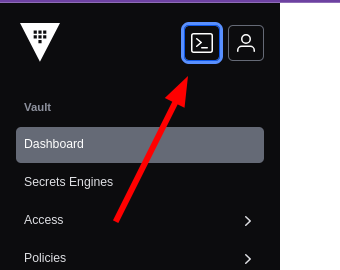
- In the web CLI, list the available roles for GCP authentication method:
vault list /auth/gcp/roles- The output should be something like this:
> vault list /auth/gcp/roles
    Keys
      production-servers
- The output should be something like this:
- Now read the contents of the role you want to use:
- Note: you probably want your environment to have it's own role. production-servers and nightly-servers are very generic.
vault read /auth/gcp/role/production-servers
- If there is no applicable role, create a new role:
- To do: maybe create a new page for this or give it it's own header.
vault write auth/gcp/role/gcp/<my-new-role> bound_projects="gcp-project-name" bound_regions="gcp-instance-region-locations" bound_service_accounts="gcp-service-accounts-attached-to-instances"- You probably also have to create a new vault ACL policy from the Vault server GUI.
- You should copy and modify the ACL policy from another already-existing policy.
- You probably also need to create a new attracs-linux-playbooks/inventory/linux-servers.ini group and add your servers to that group
- You probably also need to create a new
vault_configuration_group. - You probably also need to modify
agent_config.clf.j2to support your newvault_configuration_group
- Copy the contents of
bound_service_accountsand add your new instance's service account to the list if it does not already exist.- Syntax is like so:
vault write auth/gcp/role/production-servers bound_service_accounts=""abc123@attracs-services-195009.iam.gserviceaccount.com","def456@attracs-logistics.iam.gserviceaccount.com","ghi789@attracs-services-195009.iam.gserviceaccount.com"
- Syntax is like so:
- Double triple-check that the output has the same syntax as before when you read the role. If the syntax is wrong, all authentications to this Vault for this role will fail!!!
Old Vault
Adding a new instance to old vault
If you've created a new project or have created an instance with a different service account than what has already been configured for the old vault, you will need to do some configuration to make the vault connection work properly.
1. Configure attracs-linux-playbooks/inventory/linux-servers-ini by adding your instance to the vault group that you want to use
1. The list of valid groups are found from attracs-linux-playbooks/inventory/group_vars/. Use the file names, ignore what is inside the files.
2. vault list auth/gcp/roles
3. vault read auth/gcp/role/<role-you-want-to-modify>
1. Pay close attention to the syntax of bound_service_accounts
4. vault write auth/gcp/role/<role-you-want-to-modify> bound_service_accounts="<service-account-1@iam.gserviceaccount.com>","<service-account-2@iam.gserviceaccount.com>"
-
- DANGER! If you fail the syntax, the vault role will stop working for all new and existing instances until you fix the syntax.
-
If it is a new project, give the old vault service account devops-compute-engine@attracs-devops.iam.gserviceaccount.com permissions to read and list compute instances in the project with the custom role devops-compute-engine